External IdP Server Setup
The objective is to correctly setup the tenant's authentication server to use SCIM to synchronise user profiles so that the tenant organisation can use their authentication server to manage users and their associated groups.
Caveats
- Removing a user from a group in the Azure AD application once synced will not remove them from SureCloud.
Roles and Responsibilities
-
SureCloud: to provide the tenant organisation with
-
The SCIM Endpoint URL
Example:
https://example.eu.auth0.com/scim/v2/connections/con_JHDIqSe2jfa4a8pK/?aadOptscim062020 -
The SCIM Endpoint Secret Token
Example:
tok_D5KL3ePbEDaJRIef.1eeebcb302fd8bb875adde183bf96edbe5eeddea5bc757d3e408b9b381501e7f -
The Group Names and Group IDs that are to be mapped and sent
in the SCIM requests
Example:
[{
    "groupId": "8c27f1e1-4d7e-4c85-9d28-3a9e9c9f7e41",
    "description": "Users in this group can report suspected privacy breaches and submit related incidents for review.",
    "name": "Privacy | Breach Reporter"
  },{
    "groupId": "5b4e2a17-df3c-4b82-a6f2-27a119d8c441",
    "description": "Provides users with read-only access to system resources without the ability to modify or delete data.",
    "name": "Read Only"
  },{
    "groupId": "e21c4d6a-8a6f-4f5f-b2c9-54cb6dce3d0d",
    "description": "Responsible for overseeing risk registers, assessments, and mitigation plans across the organization.",
    "name": "Risk | Manager"
  },{
    "groupId": "baf8a3c9-2b6f-41c7-bc69-9f84ad12c7c2",
    "description": "Grants full administrative rights to manage vulnerability scans, results, and remediation workflows.",
    "name": "Vulnerability | Admin"
  }]
-
The SCIM Endpoint URL
- Tenant organisation administrator to configure their tenant's authentication server to use SCIM.
Tenant Organisation Administrator: Configure Authentication Server
- Set Tenant URL
- Navigate to https://portal.azure.com/#home.
- Click on Enterprise applications.
- From the list of applications, create a new application for the SureCloud SCIM integration.
-
Click Create your own application. Call it something appropriate and select the radio box Integrate any other application you don't find in the gallery (Non-gallery).
- Click create. Once the application is created it will take you to its summary.
- From the left-hand menu select Manage -> Provisioning.
- From the left-hand menu select Manage -> Connectivity (preview).
- Set Tenant URL and Secret Token provided by SureCloud via secure email.
- Set up App Groups
- Navigate to https://portal.azure.com/#home.
- Click on Enterprise applications.
- Navigate to desired application.
-
Click on the Users and groups section in the left bar and add desired groups to the application.
- Set up App Roles
- Now for each of the groups added to the application you need to create an App Role.
-
Navigate to Users and groups section of the SCIM application and click on application registration.
-
In the App Roles page, click Create App Role.
-
Create an app role for each of your app groups that you want to sync to 1 or more SureCloud groups. Note the name as it will be the key we filter for the next section.
-
Return to the Users and groups section of the SCIM application. Now click Edit assignment and assign the new application role that matches each group.
- You will now see the Role assigned to the group has been updated. This cascades to all users in the group.
- Set up Group Mapping / Attribute Mapping
- Navigate back to the SCIM application.
- From the left-hand menu select Manage -> Provisioning.
- From the left-hand menu select Manage -> Attribute mapping (Preview).
- From the list select Provision Microsoft Entra ID Groups.
- Set Enabled to No. Then click Save.
- Return to the previous screen. Attribute mapping (Preview).
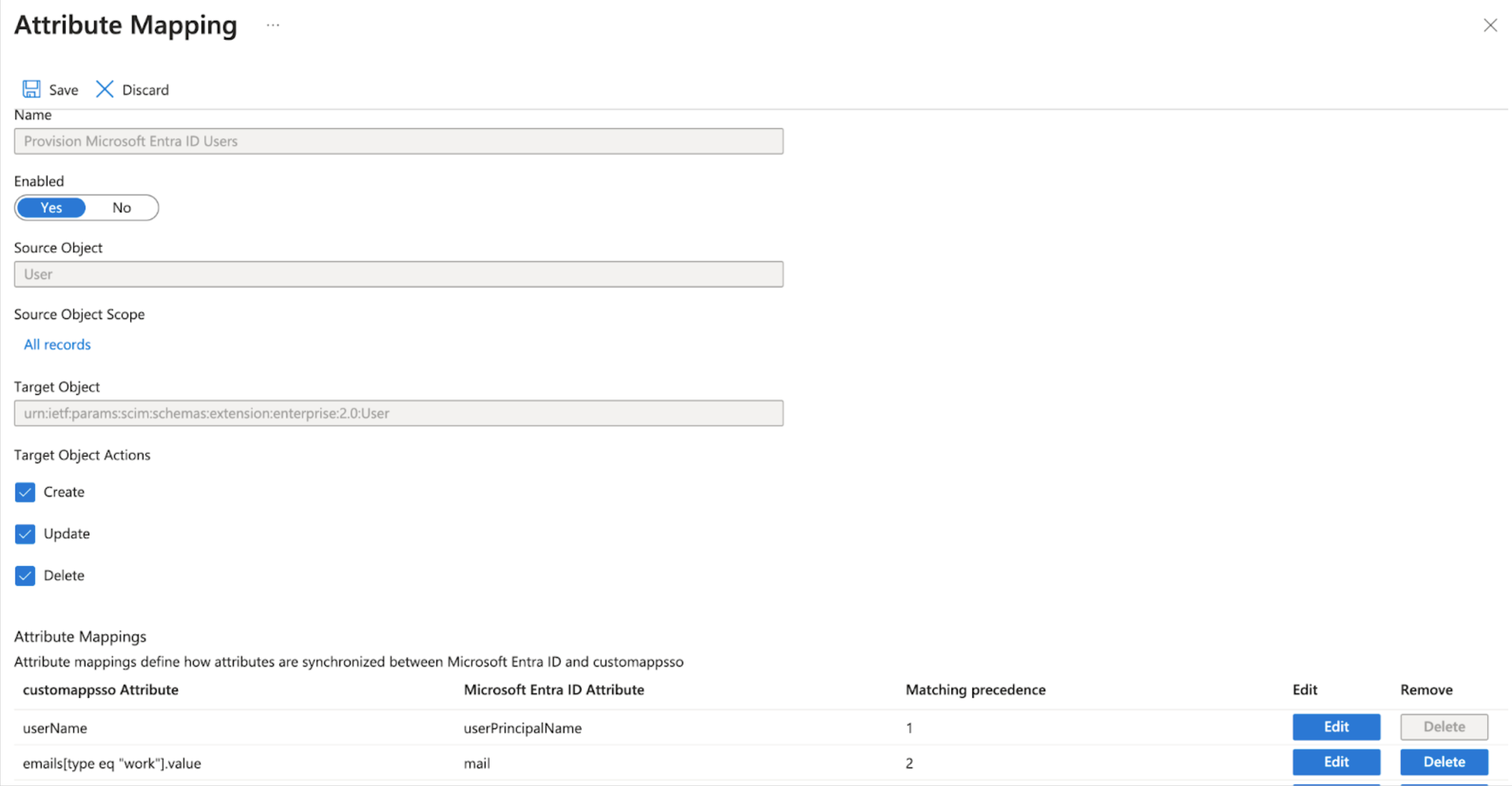
- From the list, select Provision Microsoft Entra ID Users.
- Head to Mappings and select Provision Azure Active Directory Users, then go to Attribute Mappings and select the line containing userName. Ensure it has Matching precedence 1.
-
Now select the row containing emails[type eq "work"].value and mail. In the Edit Attribute screen, change Match objects using this attribute to Yes, then set Matching precedence to 2 and choose OK.
- Delete the name.formatted Attribute.
- Delete the manager Attribute.
- From the list, of customappsso Attribute properties edit userType.
-
Create an Expression that returns the required comma-delimited list of Group Ids for a given user.
Group sync behaviour (userType values)
The value returned for theuserTypeSCIM attribute determines how SureCloud handles the user’s group memberships.Value sent in userType Effect on SureCloud user groups
Comma-separated list of Group UUIDs User will be assigned exactly these groups. Any existing group memberships not in the list will be removed. Empty string ("") User will be unassigned from all groups — i.e. no group memberships. IGNORE Don’t change group memberships at all — the existing groups in SureCloud will be preserved.
For example, below is an expression that will map a user to SureCloud groups based on Entra membership:IIF(SingleAppRoleAssignment([appRoleAssignments])="SureCloud Service Accounts","IGNORE",IIF(SingleAppRoleAssignment([appRoleAssignments])="SureCloud TPRM admins","7866fa5b-124d-4ddd-850b-197d39d806b8",IIF(SingleAppRoleAssignment([appRoleAssignments])="SureCloud TPRM users","6bb924e6-dccd-42c6-b7e9-d02215ed3c5d","4e315da2-e7e1-48ec-ada2-86bd949c6baa")))Note: SureCloud TPRM admins in this example is the name of an App Role that is assigned to the group of the same name in Entra. The UUID's are the ids of desired SureCloud groups that these users should be in.
-
SCIM Behaviour and Source of Truth
- SCIM Responsibilies
- SCIM manages
- User provisioning
- User updates
- Group membership (when not IGNOREd)
- SCIM does not manage:
- Group provisioning
- Group updates within SureCloud
- SCIM manages
- Existing Users
- When SCIM is enabled:
- Existing users are matched
- Group membership behaviour depends on userType value
- UUIDS -> create and overwrites
- Empty -> clears
- IGNORE -> preserves
- When SCIM is enabled:
- Disable / user leaves
- If a user is disabled in Entra:
- Authentication via SSO will fail
- User cannot access SureCloud
- Existing group assignments remain stored but user is marked as INACTIVE
- If a user is disabled in Entra:
- SCIM Responsibilies
- Testing
- Navigate to the SCIM app. Its suggested to test with one user to begin with.
-
From the left-hand menu select Manage -> Provisioning. Ensure auto provisioning is disabled.
-
Add the test user's group to the application.
- From the left-hand menu select Manage -> Provisioning.
- From the left-hand menu select Provision on demand.
- Select User for testing.
-
Click the Provision button.
- Approximately 1 minute later the user should appear on the SureCloud Platform under the list of users.
-
FAQs
- If a user leaves the company, do we need to remove their permissions in SureCloud?
- No. If the user is disabled in you IdP, they will be unable to authenticate via SSO and therefore can no longer access SureCloud. Their permissions will remain stored but they will be marked as an INACTIVE user.
- If a user leaves the company, do we need to remove their permissions in SureCloud?